Plenty of colouring games ask you to install something from an app store. Browser colouring is different: you open a website, pick a picture, and colour there. This guide is about that path. It is not a catalogue of every colouring site, and it is not the same as the step-by-step first session if you already know you want Coloroo.
How browser colouring works
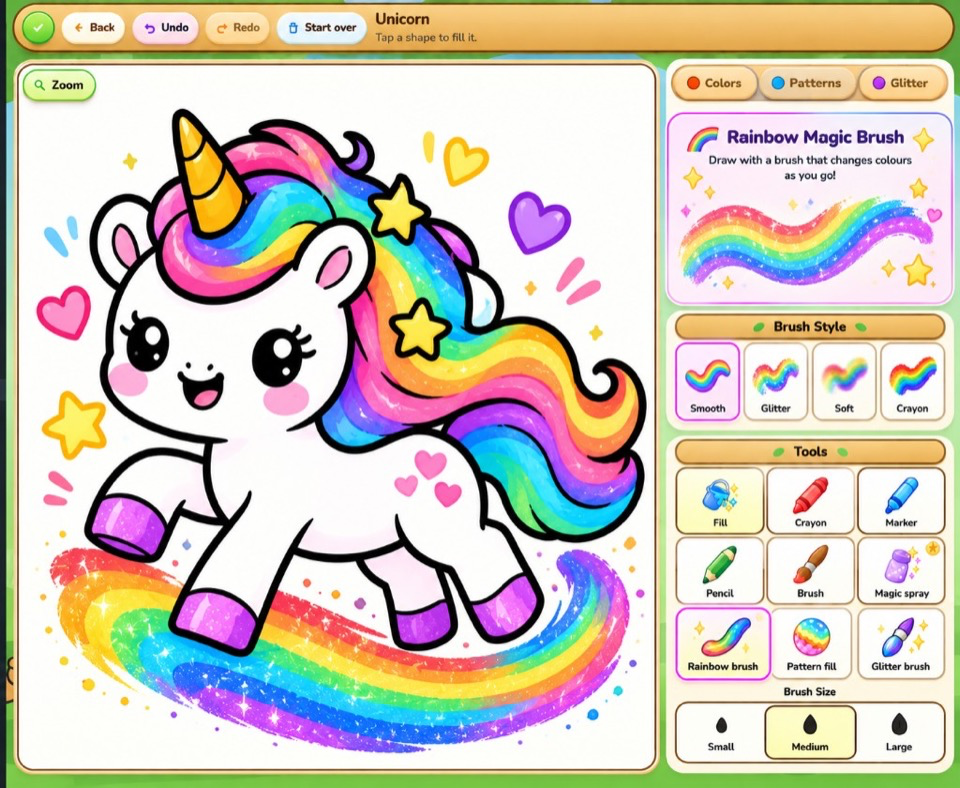
The picture and the tools load in the tab. Fill, brushes and undo run in that page. Closing the tab stops the session on that screen. You are not installing a separate application on the device.
What you can colour on
- A recent phone or tablet browser (Safari, Chrome or the device default).
- A laptop or desktop with a trackpad or mouse.
- A school or library computer if the network allows the site.
Very old browsers, or browsers with scripts blocked, may not run the editor. If the page stays blank, try another browser before assuming the site is down.
Website versus an installed app
- Website: no App Store or Play Store step. Updates arrive when you reload. Storage depends on the site: Coloroo keeps colouring on this device as you play.
- Installed app: lives on the home screen, can work with different offline rules, and takes a download. Families often prefer that when they colour on one tablet every day.
Neither is automatically better. If you are on a shared phone and do not want another icon, the browser is the lighter option.
How to pick a picture
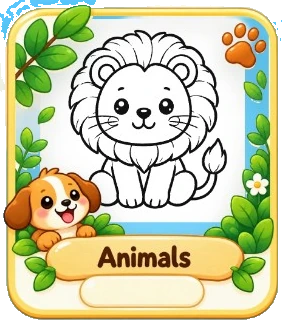
On Coloroo, open a world such as Animals or Dinosaurs. Simpler outlines (large shapes, fewer tiny spikes) are kinder on a phone. Tap the picture to enter the editor.
Tap-to-fill
Choose an ordinary colour, choose Fill, then tap a closed shape. The colour should stay inside the line. If a tap fills too much, undo. That is the fastest way to finish a cute page without a download.
Brushes in the browser
Crayon, marker, pencil and brush draw instead of filling a whole region. Magical tabs such as Glitter, Neon and Fluffy Paint sit beside them. A small set of those colours can be tried without Premium. Extra colours in those tools unlock with Annual ($1 per month billed annually) or Lifetime ($30 once). Puffy Paint colours are not gated. Creating an account does not unlock extra magical colours by itself.
What you can do without an account
You can open Coloroo and start colouring in the browser without creating an account. Artwork stays on this device while you play. An account is for saving across devices and for starting a paid plan. Guest access still follows the usual picture and tool rules. It is not unlimited Premium.
Coloroo’s guest Magic Pass, where it applies, unlocks compatible tools for one picture after you start colouring that picture. Opening a blog link does not use the pass.
Saving and printing
Use Print / Download in the editor when you want a copy of the finished page. Create an account if you want the same pictures on another phone later. There is no claim that every browser will print perfectly on every printer.
If colouring does not respond to touch
- Make sure you tapped Fill (or a brush), not an empty part of the toolbar.
- Zoom in on small shapes. A fingernail on a tiny region often misses.
- Turn off extra browser zoom or reader modes that sit over the canvas.
- Try portrait on a phone if the kit is covering the picture.
- Reload the page once. If a tab has been open for hours, tools can stall.
A short start on mobile and desktop
- Phone: pick a picture with big shapes, use Fill first, add one brush at the end.
- Desktop: a mouse is precise on spikes and horns. Keyboard users can still tab to tools, then click the canvas.
For kinds of colouring (patterns, glitter, mirror, mixing), see online colouring activities. For a first Coloroo session, use the beginner walkthrough. Bring Your Art to Life also runs in the browser: colour a supported character, then play in 3D, with no app install. How that feature works.